Geckotools Customer Console
The Customer Console provides a technically seperated interface for customers to manage the software running on their servers without being able to negatively impact the security measures put into place for the servers. In short, Geckotools lets you manage your software while we manage you security - to each his own.
It can also be used to create Support tickets for the Geckotools Support Team thereby combining all your support requests in one central place. This way you can activly follow the status of you request and easily find all communication related to a specific request.
To log into the console go to the following URL: https://console.geckoapps.nl/login/auth
Depending on your credentials you can have access to subscription management (Servers, Domains, Certificates and Webhosting) and/or Support
Subscription management
After you have logged in to the console you will see all the subscriptions you have access to in the left menu.
Servers

- On clicking Servers you can access all your active application servers
- Click on the button "Show cancelled" to see your cancelled servers as well
- Double click on a server to access further functionality
Applications
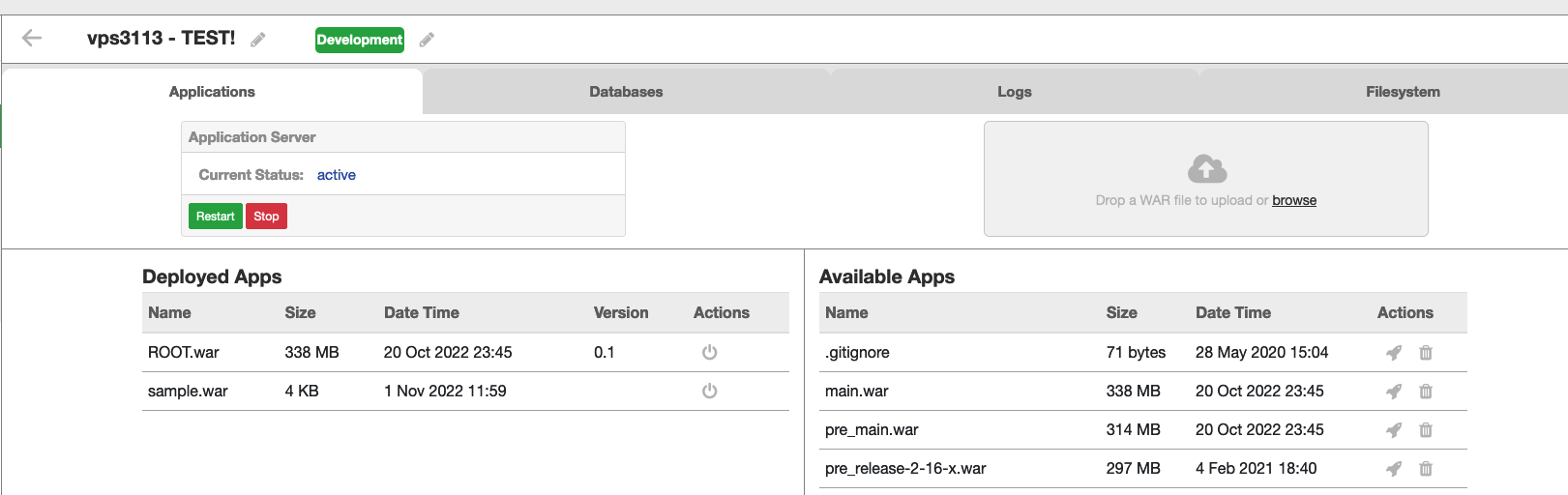
- On this screen you can see the status of your application server
- You can Stop or Restart the app server
- Under Deployed Apps you can see the .war files that are currently deployed on your server.
- With the
 icon you can undeploy a .war file
 - On the righthandside you can upload a new .war file. The .war file will then appear in the list of Available Apps
- Click on the
 icon to deploy the war file
Databases
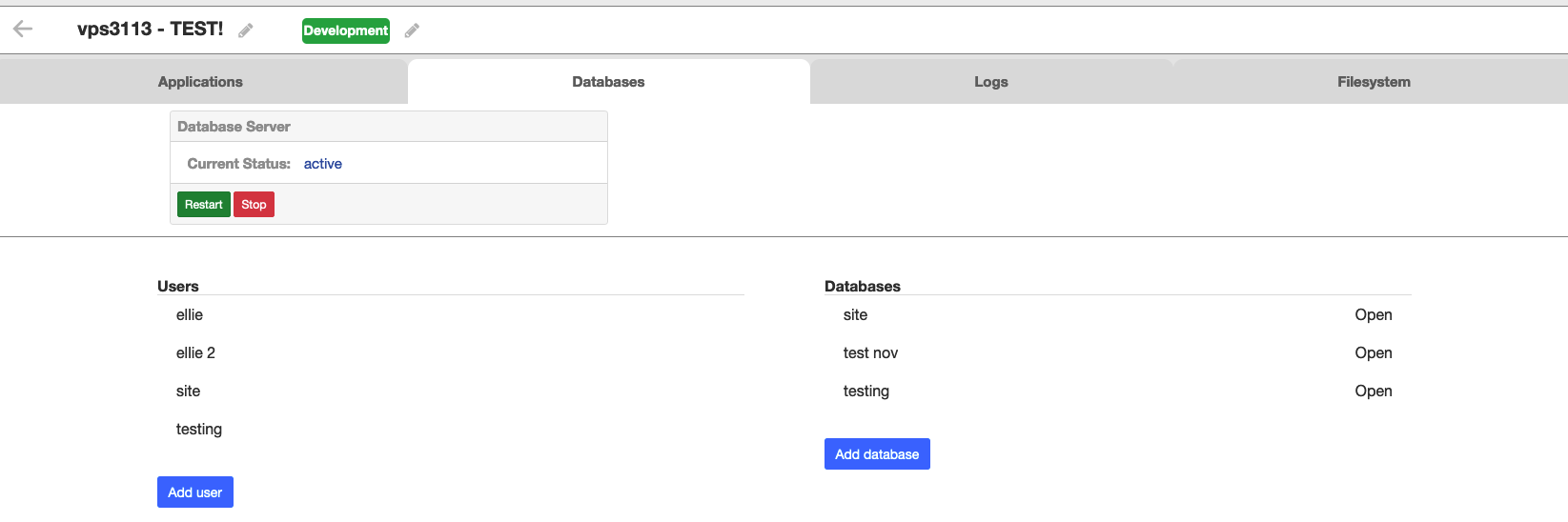
- On this screen you can see the status of your database server
- You can add a new user
- You can add a new database
- When creating a new database you can create a new user simultaneously
- Double click on a db server to access further functionality
- On the specific database screen you can:
- Access PHP PG Admin
- Import a database dump file
- Delete a database
- Download a database - you can download all tables or select the tables you wish to download beforehand
- By using the tabs at the top you can navigate to your other databases
Logs

- On the Logs screen you can tail the current cataline.out log
- By clicking on the name of a file on the right you can download a specific log file for further inspection
Filesystem
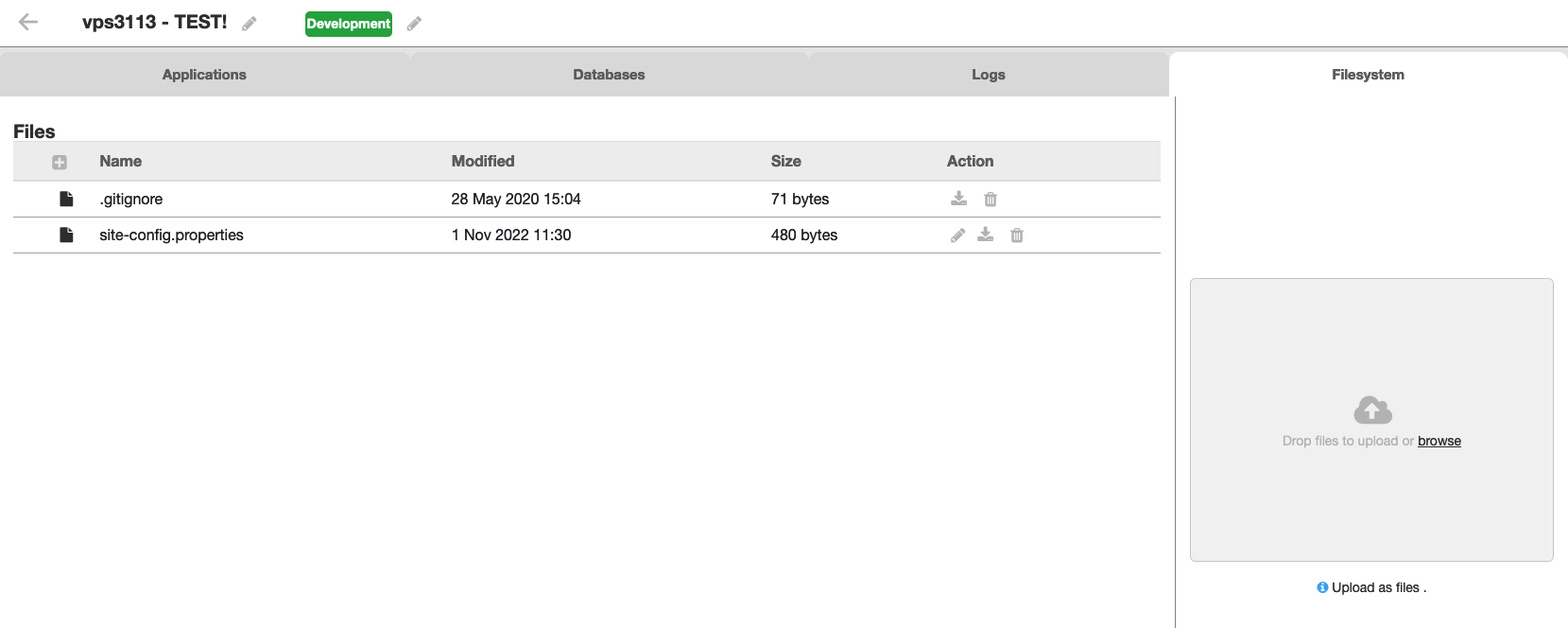
- On the Filesystem screen you can see the files currently uploaded to your server.
- Click on the "pencil" icon to edit a file
- You can also download or delete a file
- On the righthand side you can upload a new file
Domains
- Under domains you can see your active domains
TODO Expiry date weghalen want die is niet accuraat? TODO STATUS toevoegen
Certificates
- Under Certificates you can see your active certificates TODO Expiry date weghalen? TODO Status toevoegen?
Hosting
- Under Hosting you can see your current CPanel hosting sites
- By clicking on "Go to your cpanel account" you can access your Cpanel environment
Support
TODO image of support screen
To go to your support tickets or to create a new support ticket for the Geckotools Support Team click on the Support button top right
- You see an overview of your reported tickets
- You can click on a heading to sort
- You can search by subject or ticket id
- Below left you can click the "show resolved tickets" to look for tickets that have been solved.
Click the create new ticket button to create a new ticket
- You can choose whether the issue applies to a
- subscription (when we do not host any servers for you or your question/problems does not relate to a specific server)
- VPS (when the issue relates to a specific server)
- In the next screen choose the specific vps and click next
- On the Creat ticket details page fill in the question / problem / request with as much detail as possible.
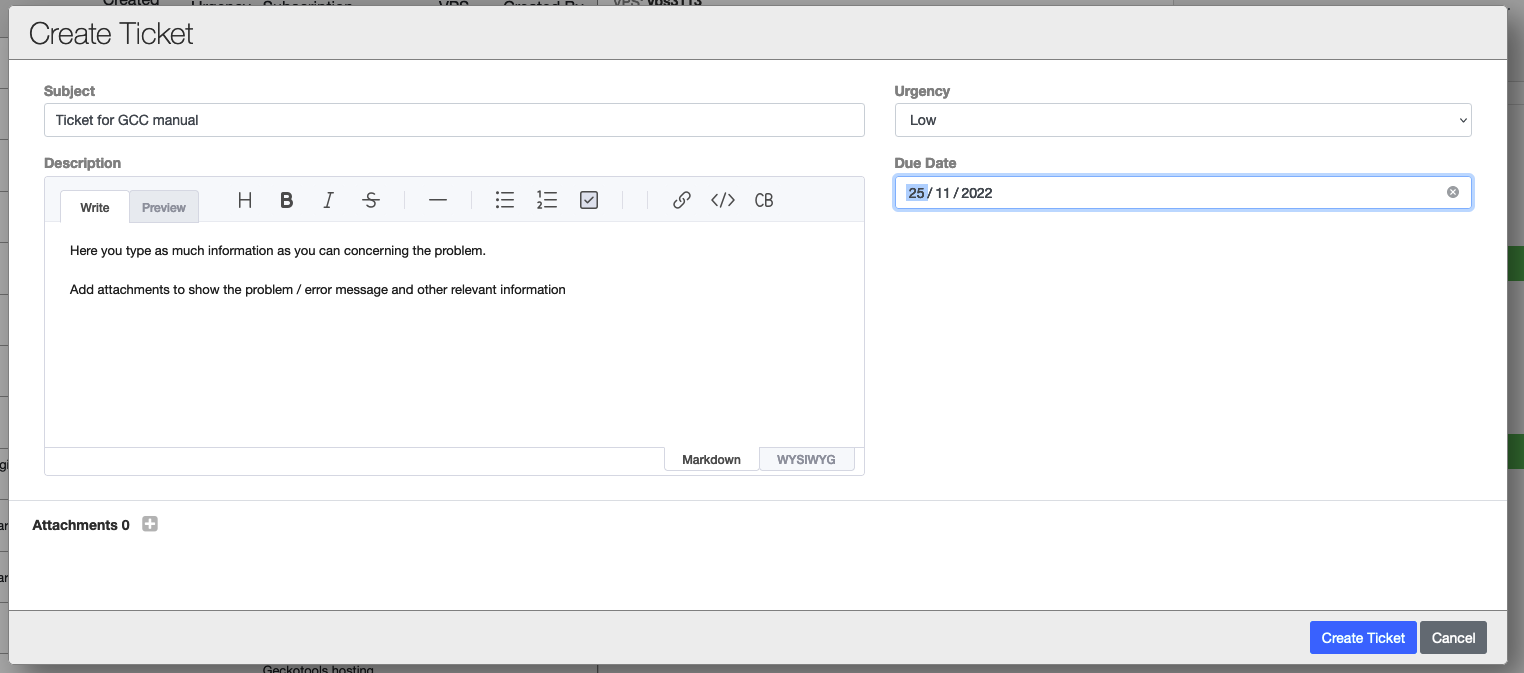
- Add any attachments that may help with trouble shooting
- Select an urgency and a due date (may be left open)
- Click on create ticket
- Your ticket will become visible in your ticket overview screen
On the right you can see the details of the ticket.
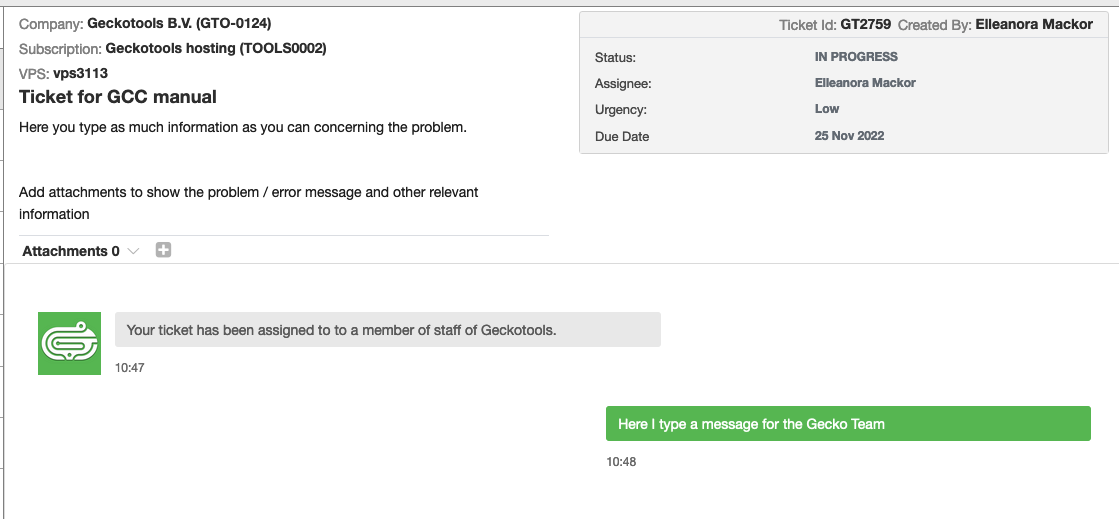
- You can add extra attachments to the ticket if needed
- On the right the status and assignee will be updated once the ticket has been put into progress
- You will also receive messages through notifications and via email indicating what is happening with your ticket
- Or you may receive a follow up question from the Support Team
- In the "type a message" field you can answer the question or type extra information you want to bring to our attention
Account management
- By clicking on your name you can access Account management
- Here it is possible to add users to enable them to also access the Console and create Support tickets
TODO change remove to disable